It used to be that I could hold in my head every feature that Zed had to offer. Helping users who were just looking for a settings tweak during this time was much simpler.
These days, I'm discovering new corners of Zed all the time; through the community, through teammates, and through commit messages I stumble upon in the gutter's blame view. With ~900 pull requests merged each month, it can be hard to keep up with all the features and changes that land.
You can read the release notes every Zednesday™️, you can scour the documentation, but chances are, you will still miss some hidden gems that might make a big difference in your day-to-day with Zed.
In this series, we'll cover our favorite hidden gems and workflows, as well as yours, so we can all learn a bit more about Zed.
Let's get into today's gems! 🎉

One of the best things about Vim, is you can map one keybinding to another. Wait, did I say Vim? I meant Zed.
I have two fun examples to make programming in Rust easier:
{
  "context": "vim_mode == visual",
  "bindings": {
    "\\ d": ["workspace::SendKeystrokes", "\" a s dbg!( ctrl-r a ) escape"]
  }
},
{
  "context": "vim_mode == normal",
  "bindings": {
    "\\ d": ["workspace::SendKeystrokes", "v a a \" a y g v [ x [ x \" a p"],
  }
}
If I select an expression, \d will wrap it with dbg!. And if I put my cursor in the middle of a dbg!(...), \d will remove it.

Using the editor: spawn nearest task action is the most convenient keyboard-driven way to run a test repeatedly from Zed while iterating on it.

Certain features start in a semi-stealth mode via context menus: it's often simpler to throw in another bullet for a specific functionality instead of building a whole new UI.
Here are a few I enjoy the most:
When I select, copy a text and want to insert it somewhere, I really like to use Copy and Trim functionality:
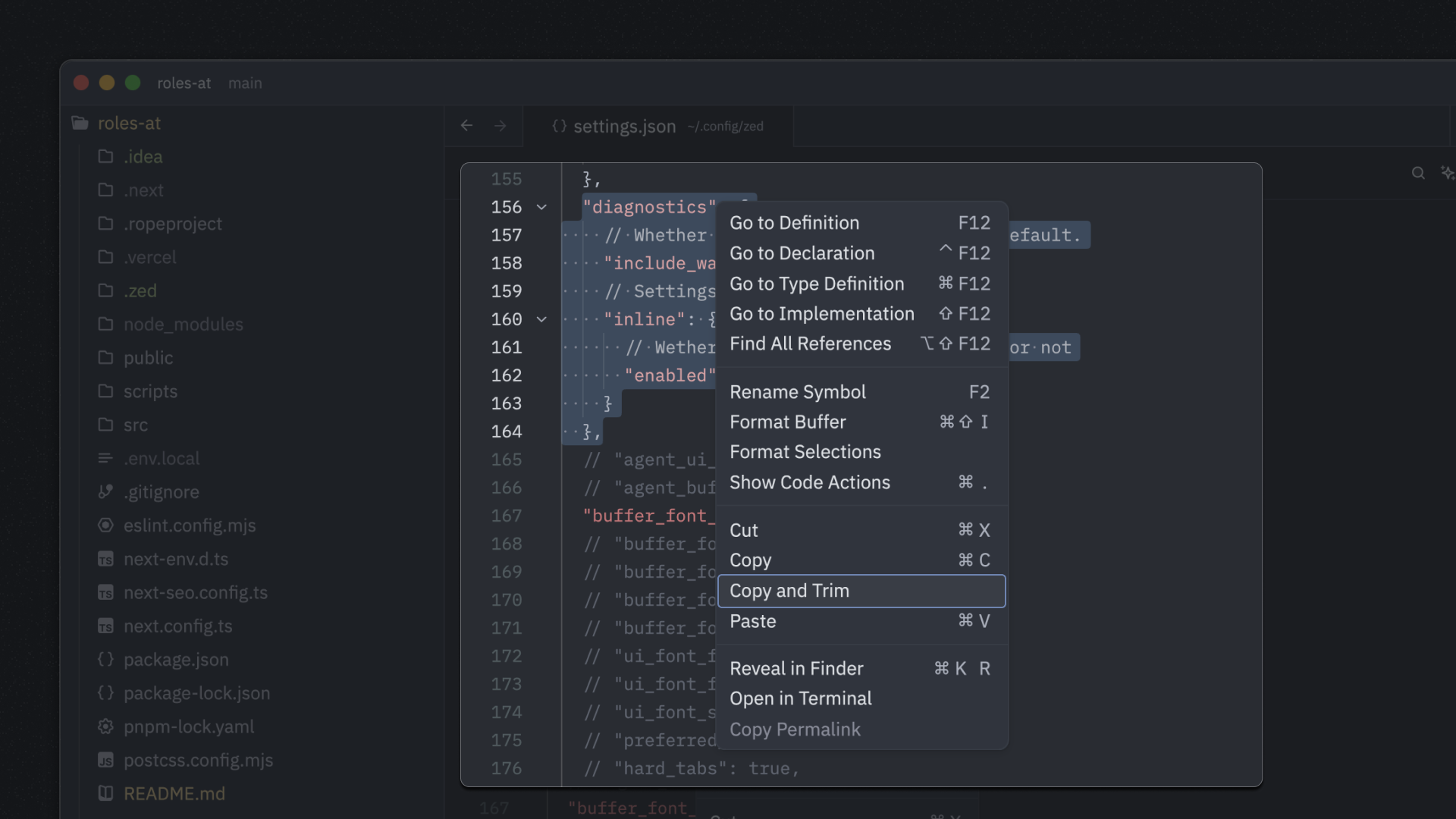
Zed's editor context menu
A regular Copy would copy just what's selected, resulting in
"diagnostics": {
    "inline": {
      "enabled": true
    }
  },
or
  "diagnostics": {
    "inline": {
      "enabled": true
    }
  },
insertions later.
Copy and Trim produces much more convenient insertion:
"diagnostics": {
  "inline": {
    "enabled": true
  }
},
Inside the project panel, there's a way to select multiple entries, and the two most recently selected can be compared using Compare marked files:
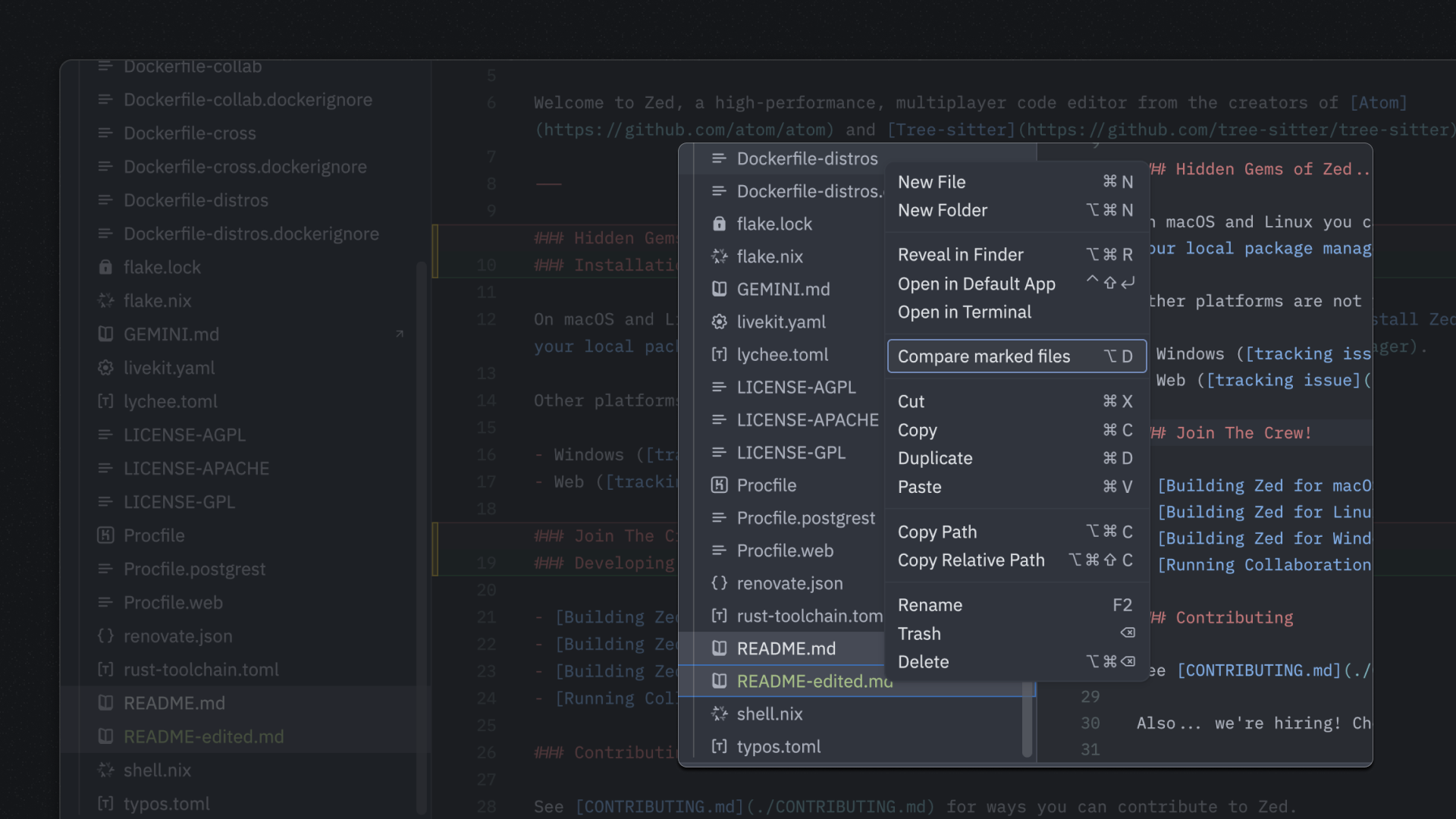
Zed's project panel context menu

I'm often writing long prose text in Zed, whether for my personal blog or within Zed's channel notes (where we plan and strategize work).
When doing that, I prefer to clean up my workspace in a way that helps me focus on the writing itself. And there's a super neat set of actions you can use for that.
Here's my step-by-step approach:
- Close all open panels/docks with
workspace: close all docks (you can also do it via each panel's individual keybinding)
- Clean up your workspace with
workspace: close inactive tabs and panes
- The key: Use the
workspace: toggle centered layout action to make your only pane/tab centered in Zed's UI
Boom! That makes writing feel a bit more comfortable, focused, and narrower (in a good way). Nothing else to distract me from writing what I need to write!

You might already know that Zed has a built-in editor: select all matches action that will create multiple selections, based on what's under your current selection, and allow you to edit all matches simultaneously. This is useful on its own, for simple cases where you want to match on one form of text, but Zed has a more powerful version of this:
- Run a
buffer search: deploy
- Engage the regex search filter and enter in your pattern
- Rather than hitting
enter to advance through matches as you normally would for a buffer search, hit alt-enter, and all matching items will be selected. There is also a dedicated select all matches button in the buffer search bar, if you're into using your mouse!
In general, you can create multiple selections in this buffer for any buffer search you can come up with.

I'm a heavy user of multicursors in Zed and often find myself in need of a cursor on each line so I can manipulate a bunch of text at once.
A quick way to achieve this is with the editor: split selection into lines action. I'll select the entire contents of the buffer, split the selection into lines, and then edit with multicursors to my heart's content.
As a user I want to make sure that my files are never saved, so when I run the tests they fail again because they don't have my latest changes...
Said no-one ever.
{ "autosave": "on_focus_change" }
Now any time I switch from an editor to a terminal, the file is saved. My tests run the same version of the code I just wrote, and all that is wrong in the world is righted.

You might know about Zed's outline modal for quickly inspecting and navigating a buffer symbolically. You can deploy it with cmd-shift-O on macOS (outline: toggle).
By default, the search bar at the top filters symbols by their name only. However, if you include a space in your search query, Zed will expand the search to match against both the symbol's name and its contextual keywords (like visibility modifiers and declaration types).
This lets you construct queries like:
pub fn to navigate all public functions in a Rust filetrait (with a trailing space) to navigate all trait definitionsimpl Foo for to find implementations of the Foo trait
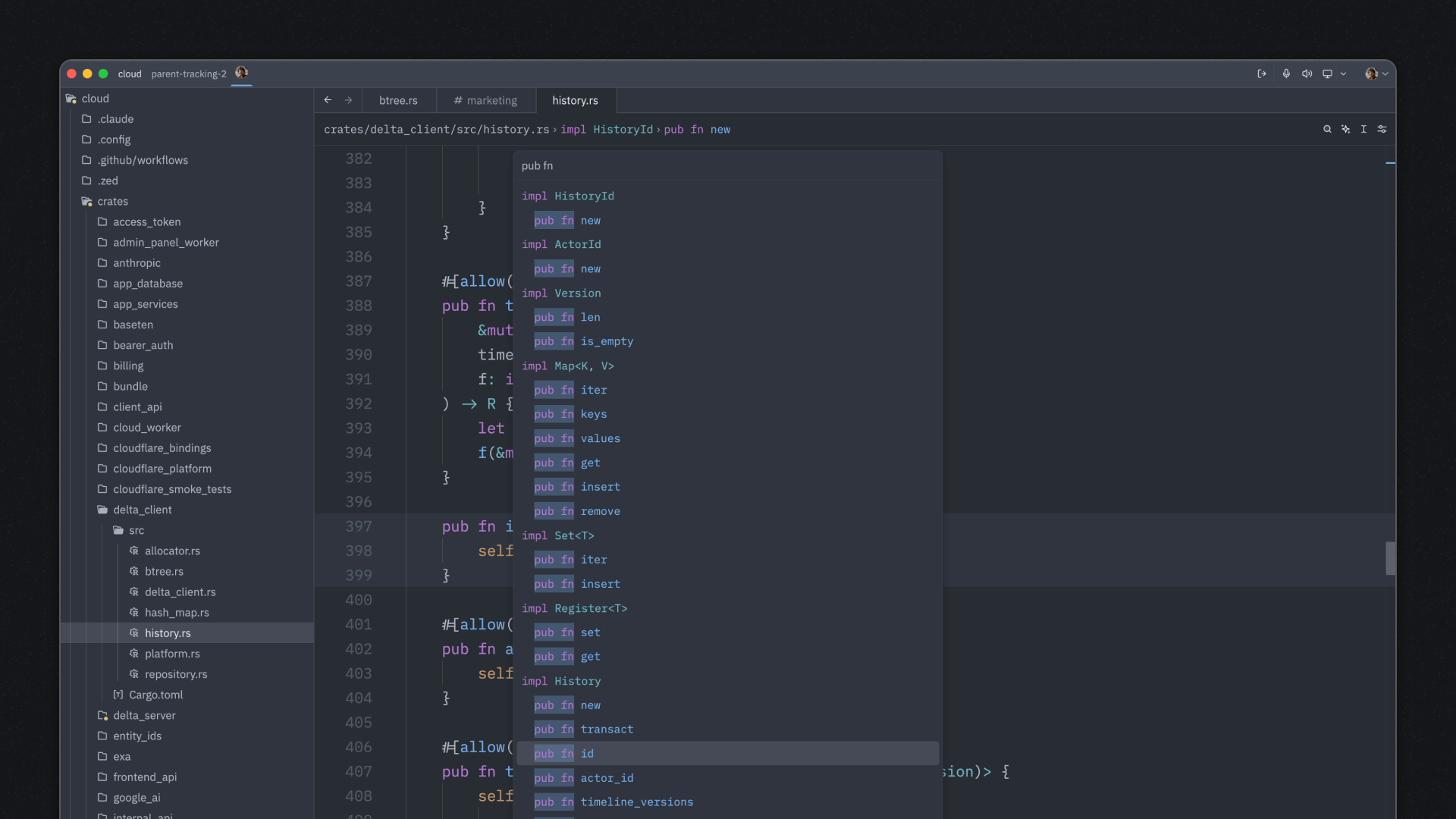
Filtering all public functions in a buffer via the outline panel
File navigation happens in many ways in Zed, a few include:
- Opening a file with the project panel (
project panel: toggle focus)
- Opening a file with the file finder (
file finder: toggle)
- Jumping to a symbol's definition by holding down
cmd (macOS) or ctrl (Linux/Windows) when clicking on the symbol (editor: go to definition)
By default, these actions open new files in the current pane; your current file is no longer in view.
If you hold down cmd (macOS) or ctrl (Linux/Windows) when opening a file from the project panel or file finder, or hold down alt in addition to cmd/ctrl when jumping to a definition, the new file will be opened in a new pane to the right, keeping your previous file in view.

This one comes from /u/parawaa on Reddit and it's a nice demonstration of Zed's flexibility when using tasks.
This spawns Lazygit inside of a buffer, offering a terminal GUI in a larger pane.
If you don't already have Lazygit installed:
brew install lazygit
Next, open up ~/.config/zed/tasks.json. You can quickly find this through zed: open tasks in the command palette (Cmd Shift + P).
Drop this somewhere in the file and you're ready to go.
{
  "label": "LazyGit",
  "command": "lazygit",
  "shell": {
    "program": "sh"
  },
  "hide": "on_success",
  "reveal_target": "center",
  "show_summary": false,
  "show_command": false,
  "allow_concurrent_runs": true,
  "use_new_terminal": true
}
As /u/parawaa also shows, you can even map tasks to a keyboard shortcut.
I've overridden the default Cmd Shift + G behavior to run the task.
"cmd-shift-g": [
  "task::Spawn",
    { "task_name": "LazyGit", "reveal_target": "center" }
]
What you get is a nice terminal GUI in a larger pane.
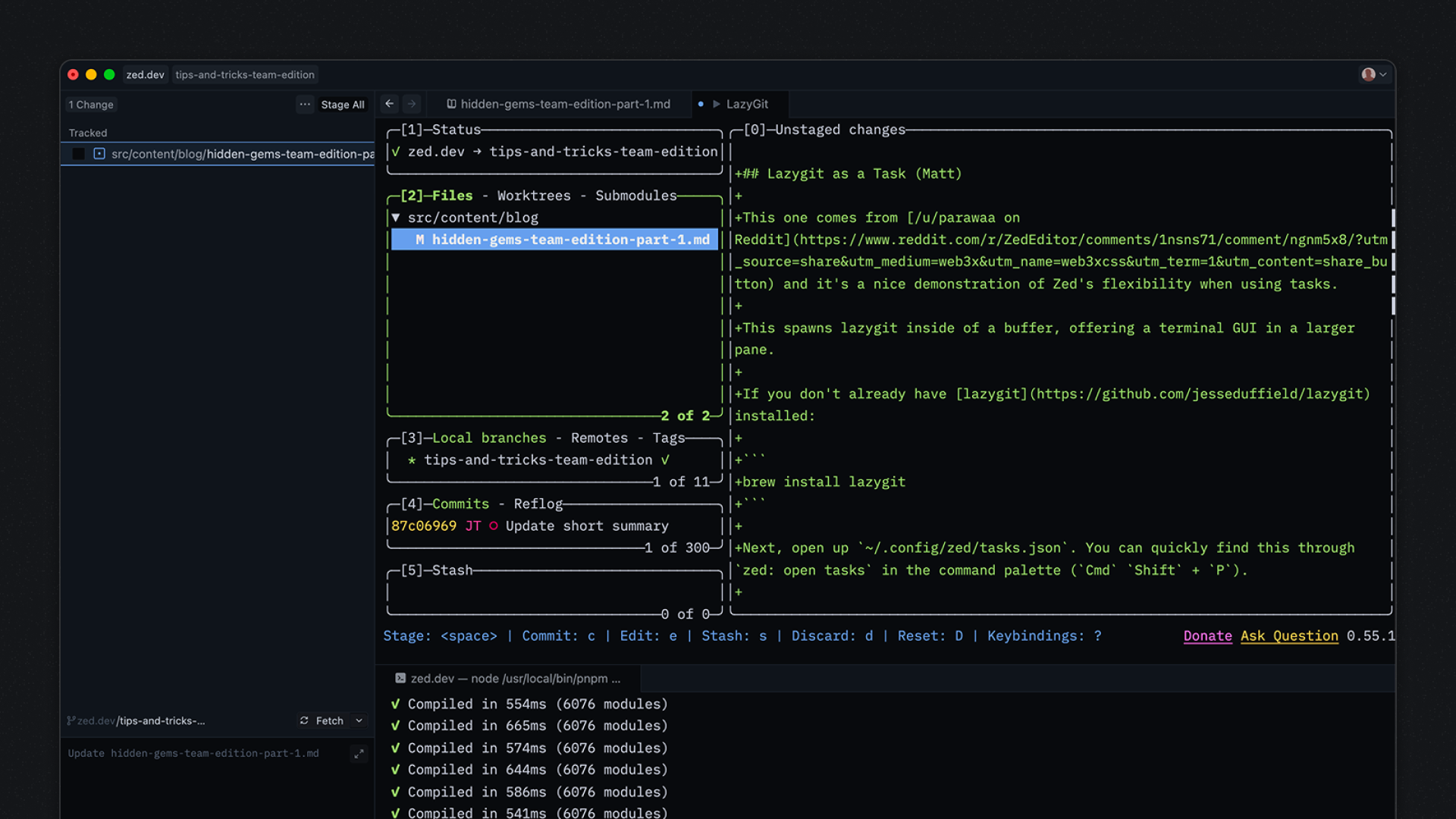
Lazygit window pane
Let us know which of these gems you found most useful, and please share your gems, so we can adopt tips you've found to be crucial in your day to day!
Related Posts
Check out similar blogs from the Zed team.
Looking for a better editor?
You can try Zed today on macOS, Windows, or Linux. Download now!
We are hiring!
If you're passionate about the topics we cover on our blog, please consider joining our team to help us ship the future of software development.
 Instagram Engineering
 Shopify Engineering