What would deeper AI integration on the Ubuntu desktop look like? Well, you don’t need to think too hard to find out.
A Canonical engineer has published a prototype launcher that simulates how on-device AI could be used to enhance and aid users of the Ubuntu desktop.
But the warty-prototype1 snap by Didier Roche-Tolomelli (aka didrocks) is not a real launcher. It’s a semi-interactive, automated mockup. It simulates things a user could do, and that includes interacting with a (theoretical) on-device AI model to complete tasks.
The Snap Store listing refers to it as a ‘design-discussion prototype of the next Ubuntu launcher’.
An intriguing choice of words – that’s as far as I’d read into it for now, though. A hint of a possible future feature perhaps, but not quite a commitment to shipping or actually building this as a real thing.
A launcher and a prompt box
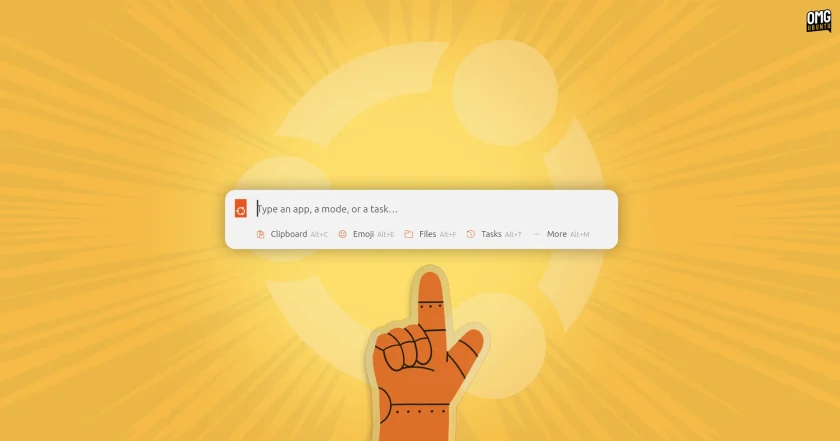
The little box that could – do things, if it was functional
I installed the prototype and ran through the simulated tasks to get an idea of what (there’s a menu full of them). The launcher itself is triggered by a small Ubuntu logo in the top panel and is only ostensibly interactive.
One simulated task saw the launcher used to find a local image file (using the file filter). The launcher’s AI box is used, and the model is asked to set the image as the desktop wallpaper and adjust the system accent colour to match.
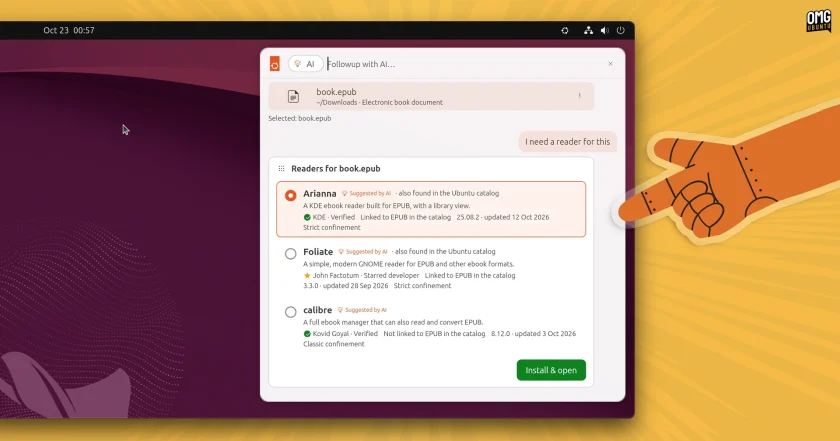
Finding apps with AI, for a file found without
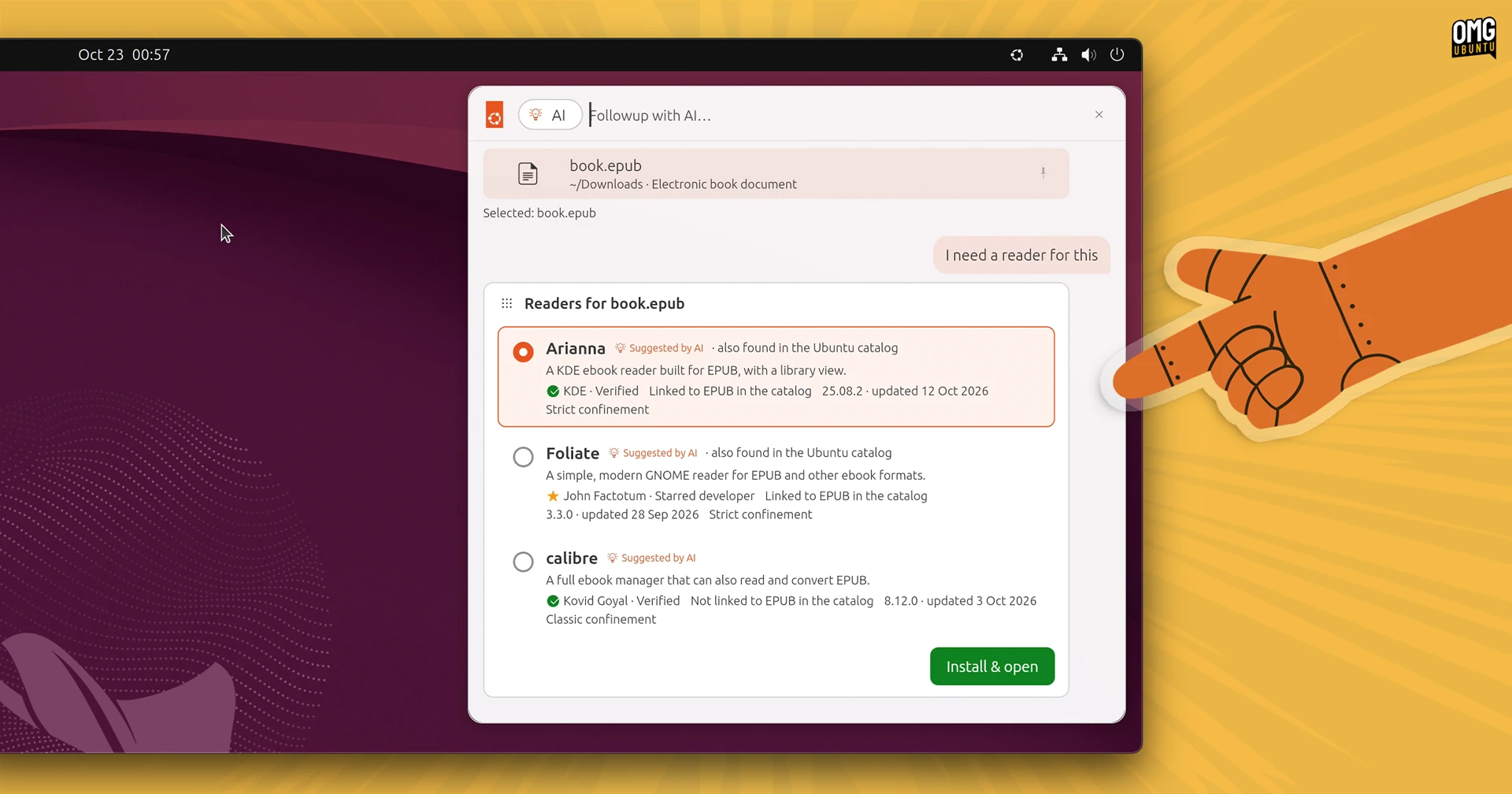
In another, the “Followup with AI…” is used to find a suitable app the user can install to open an ePub. Matches from the Snap Store filter back inside of the launcher, complete with install buttons, which then trigger an installation. Nice.
And another, and to my mind more impressive use-case demo tasks AI with creating an add-able calendar itinerary from a handful of items selected from the clipboard history. Press play on the video embed below to watch that:
A simulated demo of the ‘warty-launcher’
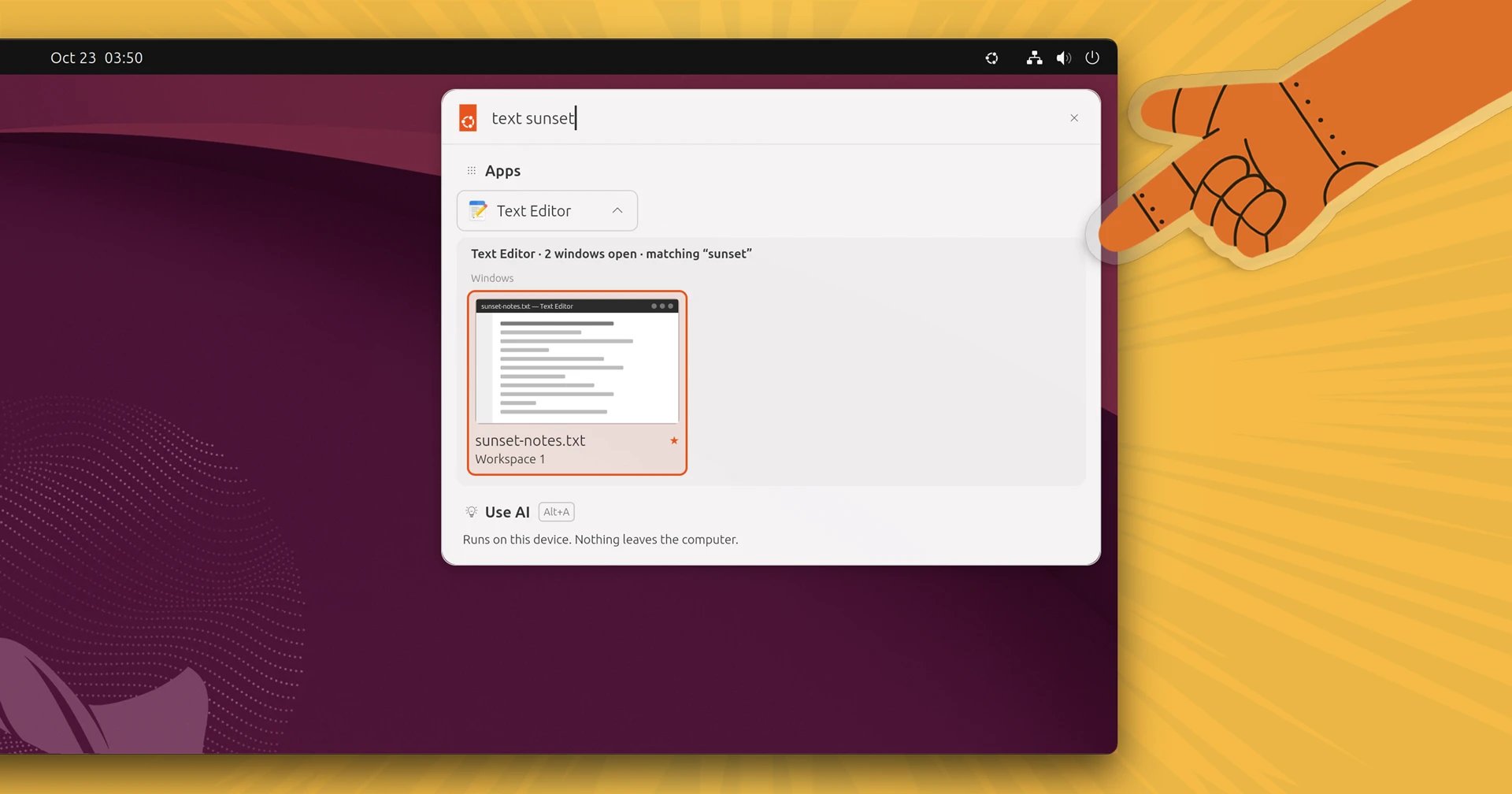
It’s intended to function as a regular launcher too, e.g., opening apps, findings files, picking emoji, clipboard history, finding open browser tabs and reviewing recent ‘tasks’.
Throughout the simulation results appear with all kinds of icons and actions to manipulate or manage them inside of the launcher, making this more of an active tool than a passive one.
Much like Apple’s (more capable) Spotlight in recent versions of macOS, in that regard. It’s not hard to imagine how the launcher could be extended further, to handle more than simple find-and-retrieve tasks.
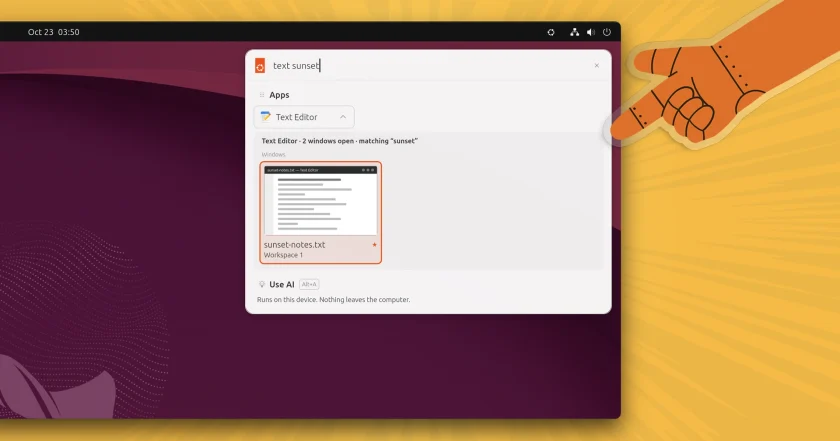
It’s a demo, Jim. But not as we know it.
We do know Canonical is keen to ‘ramp up’ AI features in Ubuntu. It released the Myna AI dictation tool in tech preview this month, and its engineers are using LLMs and agentic coding tools for various efforts, infra management, etc.
But the company has also said it won’t be bolting AI on for its own sake. Any integrations it does explore will, even in this ‘simulation’, be predicated around practical use-cases and making use of on-device AI models.
Try the demo (remember it’s a demo)
You can install the warty-prototype launcher demo from the Snap Store. It will run on most supported Ubuntu releases:
sudo snap install warty-prototype --edge
Once installed, launch it from the command-line. Click the Ubuntu icon in the top panel to reveal the launcher (and the menu of simulations to see in action).
Just keep in mind that you can’t use this to do anything. It’s a launcher mockup, not a real tool. It won’t integrate with your system, find your apps or double-up as your therapist-cum-psychosis-inducer.
- For those wondering why ‘warty’, that was the codename of the first Ubuntu release – so named as the first version was likely to be a bit of a unrefined one. ↩︎
 Instagram Engineering
 Shopify Engineering